Step 4 – building the kernel image and modules
從使用者的角度而言,這非常的簡單,只需要 make 就行了
make help 可以看到 help,這裡可以先觀察 target all
$ make help
[...]
Other generic targets:
  all - Build all targets marked with [*]
* vmlinux - Build the bare kernel
* modules - Build all modules
[...]
Architecture specific targets (x86):
* bzImage - Compressed kernel image (arch/x86/boot/bzImage)
[...]
從這裡可以得知,make all 的時候會有 vmlinux, modules, bzImage 這三個 target 被觸發
vmlinux: 未壓縮的 kernel imagemodules: 在 config 中被標記為M的會變成 kernel modules (.kofiles)bzImage: 壓縮過後的 kernel image (x86)
實際在開機時,會用壓縮過後的 bzImage,vmlinux 是作為 debug 用,(不在這本書的範圍)
這裡推薦的平行化程度 n 為
n = num-CPU-cores * factor
factor 推薦為 2,或是 1.5 (如果是高階有著 100 cpu cores 的系統)
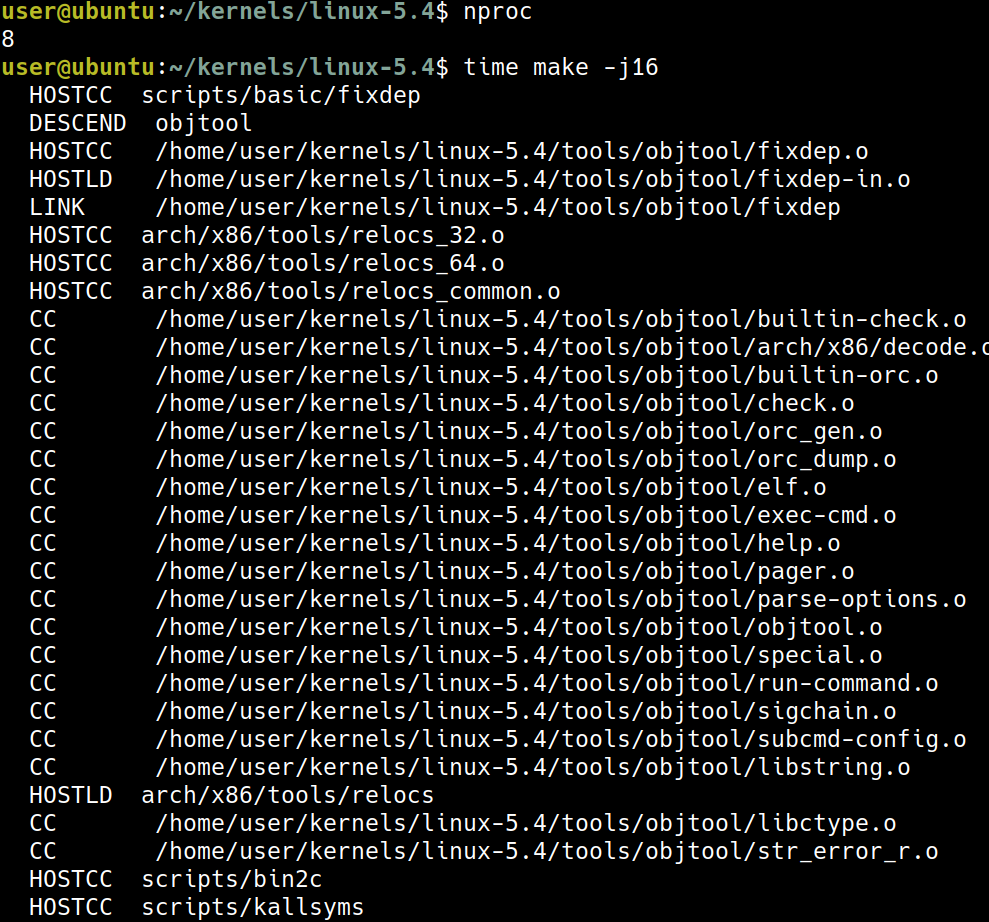
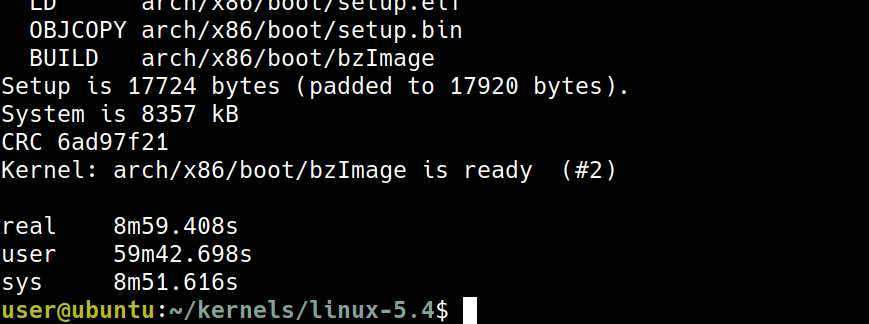 我自己在 virtural box 的設定是 8 core,根據書上的說法,我要使用
 -j16,大約花了 9 分鐘
(#2) 代表的是這是第二次 build,這個數字會在之後遞增
make all 之後,現在我們得到了 3 個東西:
- 未壓縮的
vmlinux - Symbol-address mapping file,
System.map - 壓縮過後的
bzImage

vmlinux 的檔案非常大,vmlinux 與 System.map 這兩個檔案室用來 debug 用的
實際上用來開機的會是壓縮過後的 bzImage,會放在 arch/<arch>/boot/

bzImage 只有 8.2 MB 跟 582 MB 的 vmlinux 差很多
Step 5 – installing the kernel modules
在前一個步驟中,我們看到了 vmlinux 與 bzImage,現在還少了一個東西:modules,Step 5 會告訴我們 modules 該如何處理
Locating the kernel modules within the kernel source
kernel moduels 會以 *.ko 作為結尾
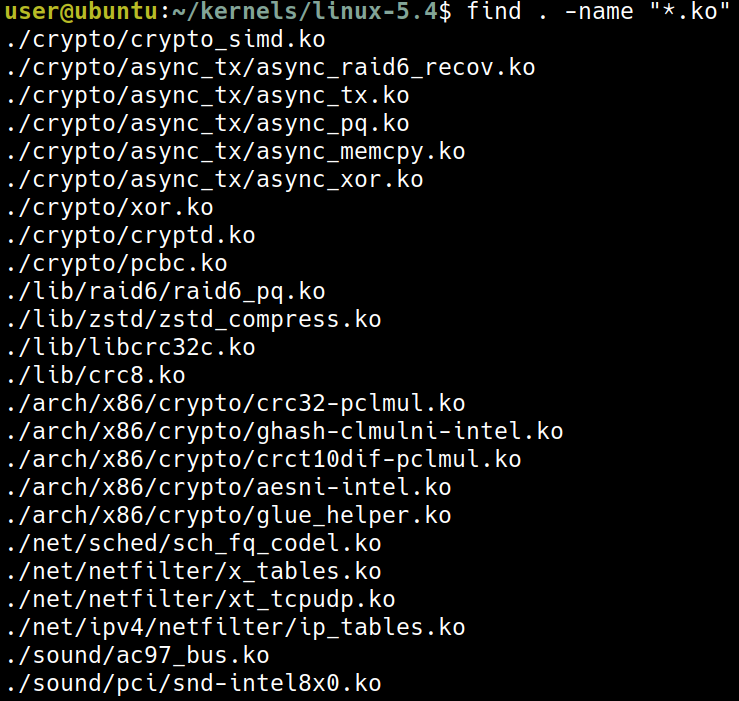
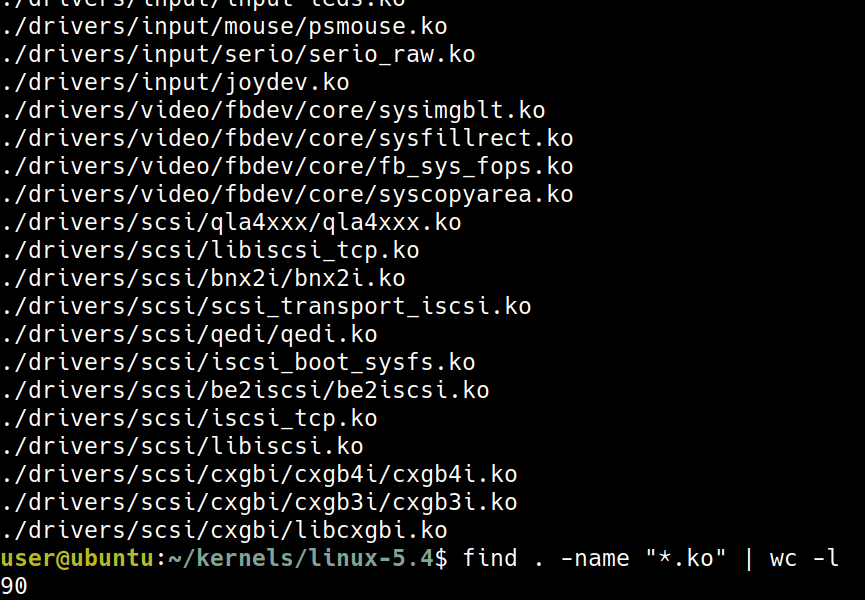
find . -name "*.ko" -ls | egrep -i "vbox|msdos|uio" | awk '{printf "%-40s %9d\n", $11, $7}'
 這裡對應到的是在 chapter 2 做 config 的時候,
- VirtualBox support, n -> m
- Userspace I/O (UIO) drivers, n -> m
- MS-DOS filesystem support, n -> m
現在我們知道需要的 .ko 已經存在了,但我們需要放在 filesystem 中的 /lib/modules/$(uname -r)/ 這是下一小節的任務
Getting the kernel modules installed
只需要用這個命令就可以做到 kernel module installation
sudo make modules_install
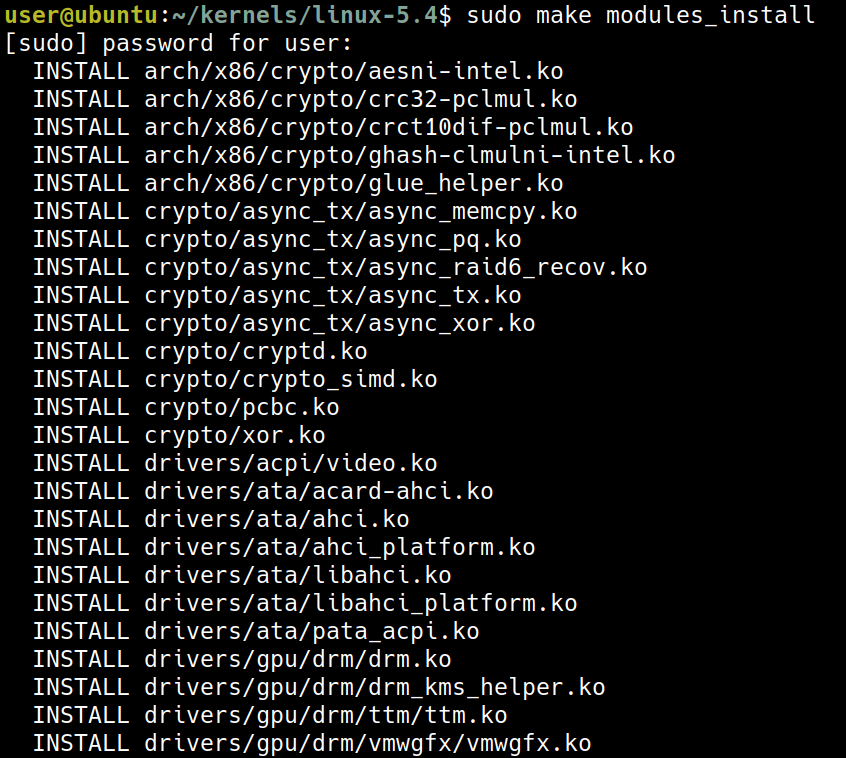

在 /lib/modules/ 中多了 5.4.1-llkd01,當之後用 5.4.1-llkd01 開機時,就會 load /lib/modules/5.4.1-llkd01/ 中的 modules
檢查剛剛我們看到的那些 .ko 有沒有放到 /lib/modules/5.4.1-llkd01/kernel/ 了
find /lib/modules/5.4.1-llkd01/kernel/ -name "*.ko" | egrep "vboxguest|msdos|uio"

最後,書中提及,我們其實可以自己指定 moduel 的 path 例如
export STG_MYKMODS=../staging/rootfs/my_kernel_modules
make INSTALL_MOD_PATH=${STG_MYKMODS} modules_install
並且在這個例子中,如果 STG_MYKMODS 在 user 可以 access 的權限,則可以不使用 sudo
Step 6 – generating the initramfs image and bootloader setup
- initramfs 代表 initial RAM filesystem
- 要注意的是這裡在討論的是 x86 底下的架構,分為兩個部份
- 產生
initramfsimage - (GRUB) bootloader setup 之所以會變成一個步驟 Step 6 是因為有很方便的工具可以讓兩個步驟變成一個步驟
sudo make install
這個命令就包含了
- 產生
initramfsimage - (GRUB) bootloader setup
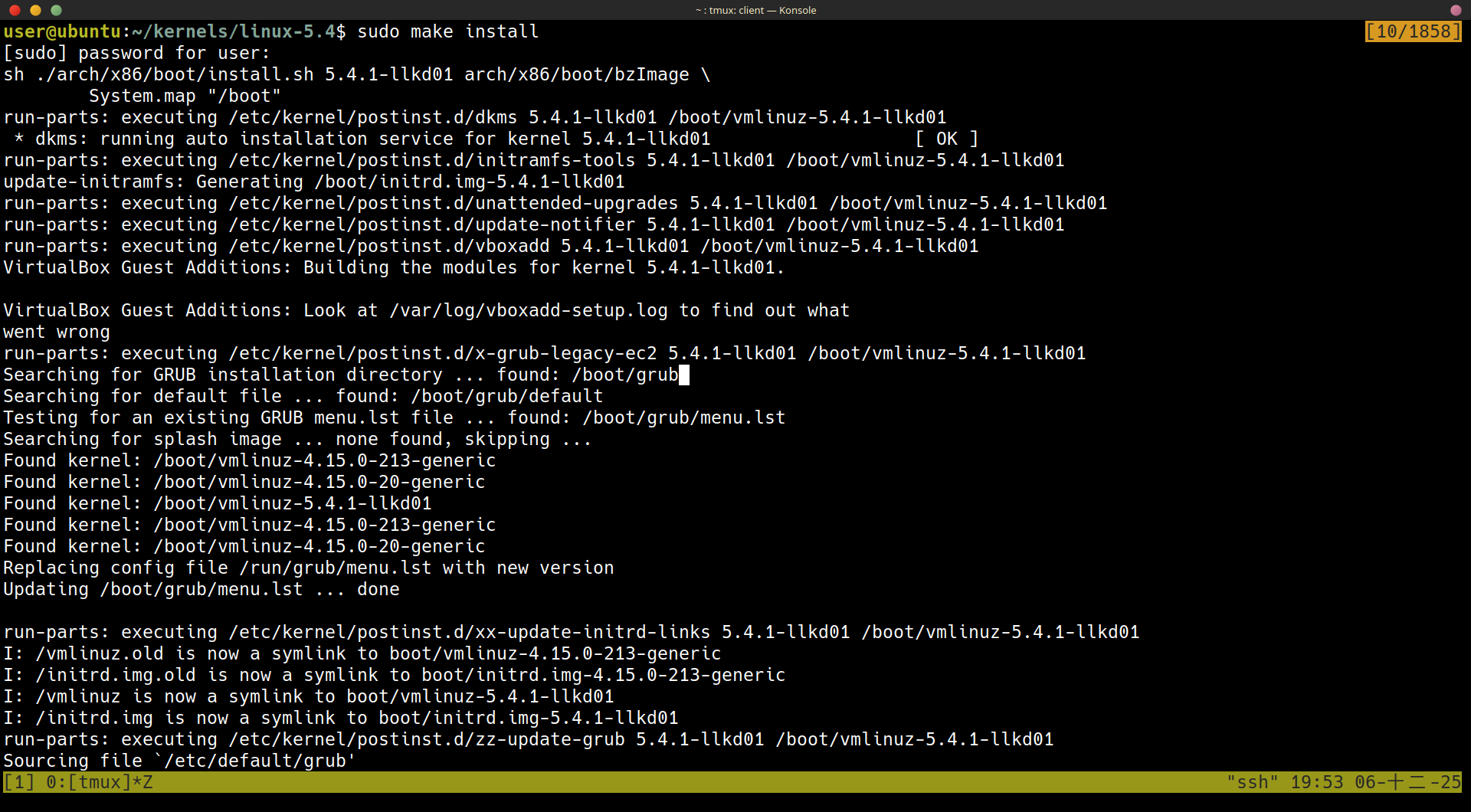
Generating the initramfs image – under the hood
在最一開始的 sudo make install 的時候,實際上會執行 ./arch/x86/boot/install.sh 這個腳本
$ sudo make install
sh ./arch/x86/boot/install.sh 5.4.0-llkd01 arch/x86/boot/bzImage \
System.map "/boot"
並且在腳本 ./arch/x86/boot/install.sh 執行完之後,會在 /boot 中產生這些檔案

initramfs(initrd.img-5.4.0-llkd01) image 是藉由腳本update-initramfs產生- 如果所有的 file 複製到了
boot中,原本的檔案會變成<filename>-$(uname -r).old - 壓縮過後的
vmlinuz-<kernel-ver>是arch/x86/boot/bzImage的 copy vmlinuz-<kernel-ver>是arch/x86/boot/bzImage的 copy- 回想一下
vmlinux是未壓縮過後的,vmlinuz則是壓縮過後的 - GRUB 的 config 檔也會更新在
/boot/grub/grub.cfg中 - 這些流程是非常的 architecture-specific
Understanding the initramfs framework
Why the initramfs framework?
- 可以跑一些 user space application 在 kernel boot 之前
Understanding the basics of the boot process on the x86
- BIOS
- bootloader (grub)
- vmlinuz + initramfs
- low-level hardware initialization
- Load these images to RAM and uncompressing
- jump to the kernel entry point
More on the initramfs framework
Step 7 – customizing the GRUB bootloader
Customizing GRUB – the basics
- keep a backup
sudo cp /etc/default/grub /etc/default/grub.orig
- 修改 config
sudo vim /etc/default/grub
- 設定一定要顯示 grub menu
GRUB_HIDDEN_TIMEOUT_QUIET=false
sudo update-grub
Selecting the default kernel to boot into
Booting our VM via the GNU GRUB bootloader
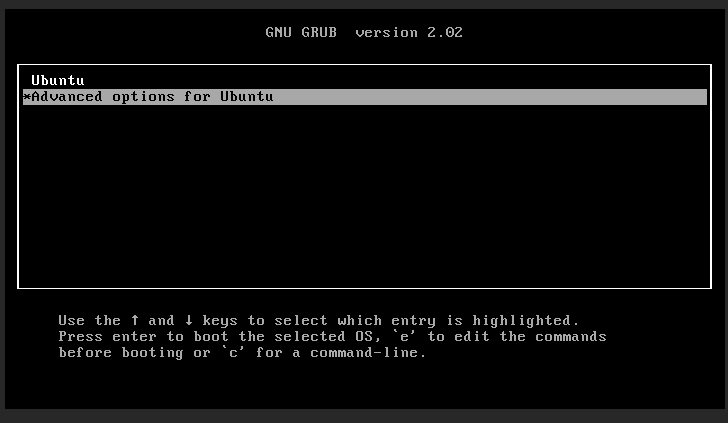
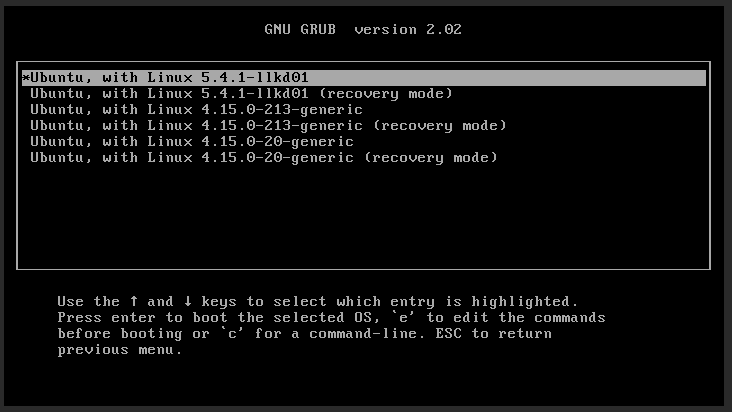
Experimenting with the GRUB prompt
Verifying our new kernel’s configuration
Kernel build for the Raspberry Pi
Step 1 – cloning the kernel source tree
我這裡是使用自己的 ubuntu 筆電,而不是像書上使用 virtual box 上的 gest VM
export RPI_STG=~/rpi_work
mkdir -p ${RPI_STG}/kernel_rpi ${RPI_STG}/rpi_tools
cd ${RPI_STG}/kernel_rpi
git clone --depth=1 --branch rpi-5.4.y https://github.com/raspberrypi/linux.git

現在在路徑 ~/rpi_work/kernel_rpi/linux 中,我們拿到了 5.4.83 Raspberry Pi kernel 跟書上的有一點不一樣 (5.4.51 Raspberry Pi kernel) 但沒這裡差一點點沒有關係。
Step 2 – installing a cross-toolchain
First method – package install via apt
這裡在安裝一些編譯時所需要的工具,書上的範例是使用 32-bit 的樹莓派,我手上的樹莓派是 64-bit,所以要用:
# Install general build tools
sudo apt update
sudo apt install build-essential git bc bison flex libssl-dev make libc6-dev libncurses5-dev
# Install the 64-bit ARM cross-compiler toolchain
sudo apt install crossbuild-essential-arm64
Step 3 – configuring and building the kernel
# Set target architecture to ARM 64-bit
export ARCH=arm64
# Set cross-compiler prefix
export CROSS_COMPILE=aarch64-linux-gnu-
# Set the kernel image filename for the Pi 4 (64-bit)
export KERNEL=kernel8
# Load the default configuration for BCM2711 (Pi 4) 64-bit
make bcm2711_defconfig
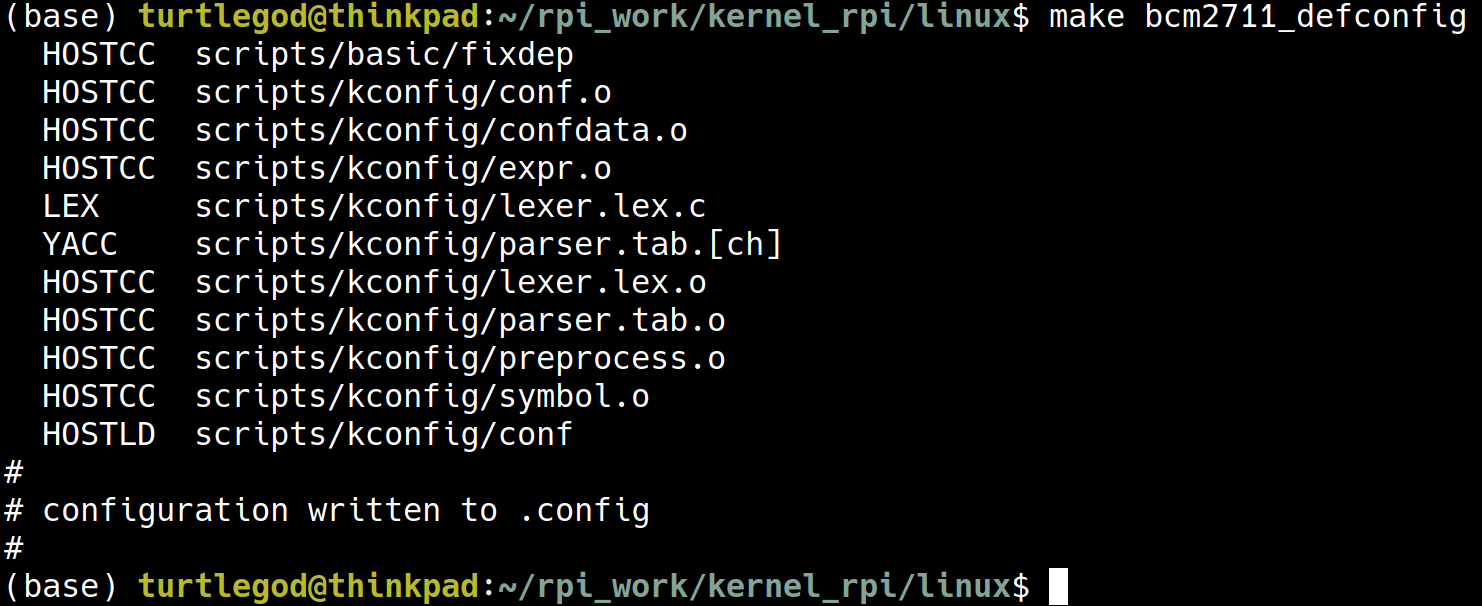
make menuconfig
# Compile the kernel image (Image), modules, and device tree blobs (dtbs)
make -j$(nproc) Image modules dtbs
 最後的 kernel image 會存放於
 arch/arm64/boot/Image
到了這裡,我們已經完成了編譯的步驟
放到 SD Card 中
在 build 之後要把以下三個東西
- kernel image
- device tree files
- modules
放入 SD Card 中
為了把東西放入 SD card 中,要先把 SD card 的 boot partition 與 root partition mount 到 ~/mnt/pi-boot 與 ~/mnt/pi-root:

# Example mounting setup (create directories first if they don't exist)
sudo mkdir -p ~/mnt/pi-boot ~/mnt/pi-root
# Replace /dev/sdX1 and /dev/sdX2 with your SD card device names
sudo mount /dev/mmcblk0p1 ~/mnt/pi-boot   # Boot partition (FAT32)
sudo mount /dev/mmcblk0p2 ~/mnt/pi-root   # Root partition (Ext4)
Copy Kernel Image
在 SD card 中 boot 中的 kernel8.img 是原本從官方下載的 kernel (6.12.47),現在我們把剛剛從 kernel source 5.4.83 build 出來的 arch/arm64/boot/Image 複製到 boot 分區的 kernel54.img
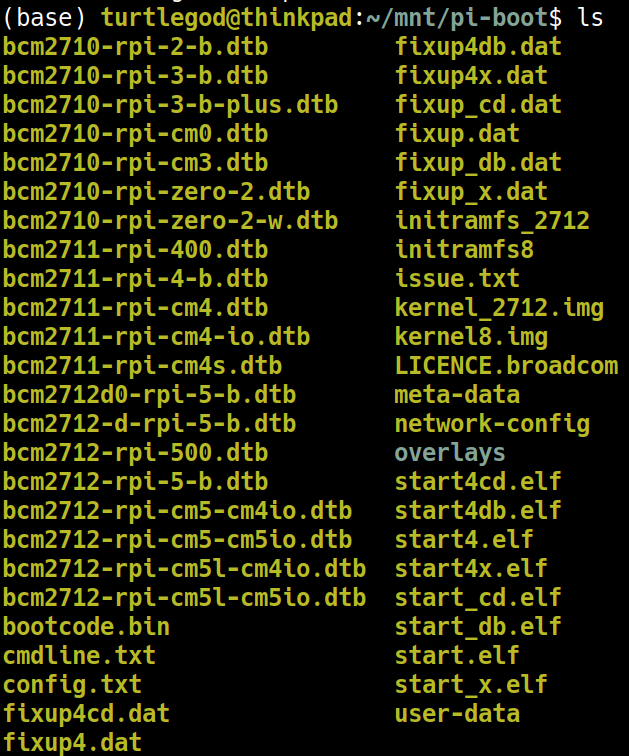
- Copy the kernel binary
sudo cp ~/rpi_work/kernel_rpi/linux/arch/arm64/boot/Image ~/mnt/pi-boot/kernel54.img
ls ~/mnt/pi-boot/kernel54.img
Install Kernel Modules
# The path INSTALL_MOD_PATH must point to the root partition of the Pi
sudo env PATH=$PATH make modules_install INSTALL_MOD_PATH=~/mnt/pi-root
ls ~/mnt/pi-root/lib/modules
現在多了一個 5.4.83-v8+ 的 module

Update config.txt
sudo vim ~/mnt/pi-boot/config.txt
[all]
# Current kernel is still kernel8.img (6.12)

# --- Start of 5.4 Kernel Block ---
[include boot54.rc]
# This setting is specific to the 5.4 kernel
kernel=kernel54.img
# Optional: If you customized the 5.4 DTB, you can point to it here:
# device_tree=bcm2711-rpi-4-b-54.dtb
[all]
# --- End of 5.4 Kernel Block ---
在 boot/config.txt 中所新增的 [include boot54.rc] 的區域,代表在 boot/boot54.rc 存在,這個 section 的設定才成立
- 所以現在新增一個空的
boot/boot54.rc來讓這個區塊的設定成立
# create the trigger file
sudo touch ~/mnt/pi-boot/boot54.rc
Unmount and Boot
sudo umount ~/mnt/pi-boot
sudo umount ~/mnt/pi-root